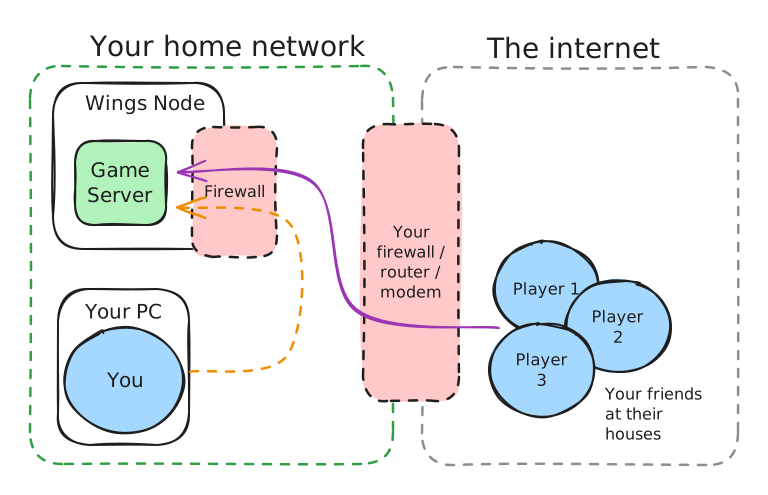
 The above network map should be relatively similar to your home network. We have 4 devices,
1. Wings Node, where the game server is hosted
2. Your gaming PC
3. A Firewall / Modem / Router
4. friend's computer
**Our end goal is for the purple line (friends computer > firewall > pterodactyl node) to work.**
There are a few places that this line can fail,
1. Connecting to the Domain (DNS issue) or IP address
2. Bad port forwarding config in the modem / router
3. Bad firewall config in the Pterodactyl node
4. Bad game server installation config
5. ISP blocking the port or port forwarding completely
6. Your ISP uses CGNAT
#### 3 is the easiest to confirm;
To do this, we'll follow the orange line in the network map above
1. Get the LAN IP address for your Wings node. This is likely to start with 192.x.x.x, 10.x.x.x or 172.x.x.x
2. Connect to your game server via the internal IP:port, eg `192.168.1.20:25565`
{% tabs %}
{% tab title="I can join the server" %}
Most likely your port forward or (IF you are using a domain) your Domains DNS is bad.
have your friend connect via your [public IP address](https://whatismyipaddress.com/) and server port, eg `1.2.3.4:25565`
**If your friends are connecting via IP, skip this step.** Browse to [this website](https://whatismyipaddress.com/) to get your public IP address and [ping your domain](https://www.youtube.com/watch?v=TWZMVM_7csE). If the IP does not match, the DNS is incorrect. If so, you most likely have a dynamic DNS address - refer to [Broken mention](broken://pages/C1lBibws0V7rHjJ1gM2e) for a solution. Alternatively, your ISP may provide a static IP address at an additional cost.
If connecting directly to your public IP fails, confirm your port forward rule applies to the
* correct local IP
* correct port
**If it still fails to connect:**
**your ISP may be blocking port forwards.** I would suggest doing some Googling on your router / modem model to confirm your port forward rule has the correct syntax as some modems are awkward. You may have luck searching for `my modem model port forward minecraft server` but if you have no luck, you will need to ring your ISP.
**Your ISP may be using CGNAT.** You will need to contact your ISP to have this resolved. I would recommend watching
The above network map should be relatively similar to your home network. We have 4 devices,
1. Wings Node, where the game server is hosted
2. Your gaming PC
3. A Firewall / Modem / Router
4. friend's computer
**Our end goal is for the purple line (friends computer > firewall > pterodactyl node) to work.**
There are a few places that this line can fail,
1. Connecting to the Domain (DNS issue) or IP address
2. Bad port forwarding config in the modem / router
3. Bad firewall config in the Pterodactyl node
4. Bad game server installation config
5. ISP blocking the port or port forwarding completely
6. Your ISP uses CGNAT
#### 3 is the easiest to confirm;
To do this, we'll follow the orange line in the network map above
1. Get the LAN IP address for your Wings node. This is likely to start with 192.x.x.x, 10.x.x.x or 172.x.x.x
2. Connect to your game server via the internal IP:port, eg `192.168.1.20:25565`
{% tabs %}
{% tab title="I can join the server" %}
Most likely your port forward or (IF you are using a domain) your Domains DNS is bad.
have your friend connect via your [public IP address](https://whatismyipaddress.com/) and server port, eg `1.2.3.4:25565`
**If your friends are connecting via IP, skip this step.** Browse to [this website](https://whatismyipaddress.com/) to get your public IP address and [ping your domain](https://www.youtube.com/watch?v=TWZMVM_7csE). If the IP does not match, the DNS is incorrect. If so, you most likely have a dynamic DNS address - refer to [Broken mention](broken://pages/C1lBibws0V7rHjJ1gM2e) for a solution. Alternatively, your ISP may provide a static IP address at an additional cost.
If connecting directly to your public IP fails, confirm your port forward rule applies to the
* correct local IP
* correct port
**If it still fails to connect:**
**your ISP may be blocking port forwards.** I would suggest doing some Googling on your router / modem model to confirm your port forward rule has the correct syntax as some modems are awkward. You may have luck searching for `my modem model port forward minecraft server` but if you have no luck, you will need to ring your ISP.
**Your ISP may be using CGNAT.** You will need to contact your ISP to have this resolved. I would recommend watching C:\Users\you>ping play.reallycoolservers.com
Pinging play.reallycoolservers.com [123.123.123.123] with 32 bytes of data:
Reply from 123.123.123.123: bytes=32 time<1ms TTL=64
Reply from 123.123.123.123: bytes=32 time<1ms TTL=64
Reply from 123.123.123.123: bytes=32 time<1ms TTL=64
Reply from 123.123.123.123: bytes=32 time<1ms TTL=64
Ping statistics for 123.123.123.123: Packets: Sent = 4, Received = 4, Lost = 0 (0% loss), Approximate round trip times in milli-seconds: Minimum = 0ms, Maximum = 0ms, Average = 0ms
C:\Users\you>ping play.reallycoolservers.com

Ping request could not find host play.reallycoolservers.com. Please check the name and try again.
C:\Users\you>ping play.reallycoolservers.com

Pinging play.reallycoolservers.com [123.123.123.123] with 32 bytes of data:
Request timed out.
Request timed out.
Request timed out.
Request timed out.

Ping statistics for 123.123.123.123:
    Packets: Sent = 4, Received = 0, Lost = 4 (100% loss),
%20(1).png?alt=media)
{"error":"The required authorization heads were not present in the request."}
.png?alt=media&token=6c746758-07f2-4ae6-a3bd-0df072acc92c)
Red = interface IP
Yellow - Subnet range
Green - Gateway IP