# Redirect domain to Google Site

<table data-view="cards"><thead><tr><th></th><th></th></tr></thead><tbody><tr><td>Time Required</td><td>15 Minutes</td></tr><tr><td>Difficulty</td><td>Easy</td></tr><tr><td>Required Knowledge</td><td>DNS</td></tr></tbody></table>

## The Scenario

In this scenario, we're redirecting a domain managed by Cloudflare to a Google Site. Google Site's are great as they are free!

### Prerequisites

* [A Google account](https://accounts.google.com/)
* [A website built in Google Sites](https://sites.google.com/new)
* A Domain managed by Cloudflare: [Configure Domain](/guides/other-guides/cloudflare/configure-domain.md)

Domains managed by other providers can be redirected to Google sites but I don't know anything about that. If your domain is managed elsewhere, you may be able to follow some of this guide, but I may not be able to assist you with troubleshooting

## Configure Google Site

{% hint style="warning" %}
This is assuming your Google Site is ready to go live
{% endhint %}

Connect your domain to your Google Site

1. Click on the settings cog in the top right
2. In the menu, select Custom Domains
3. Click on Add
4. Leave the subdomain as www and input your domain<br>

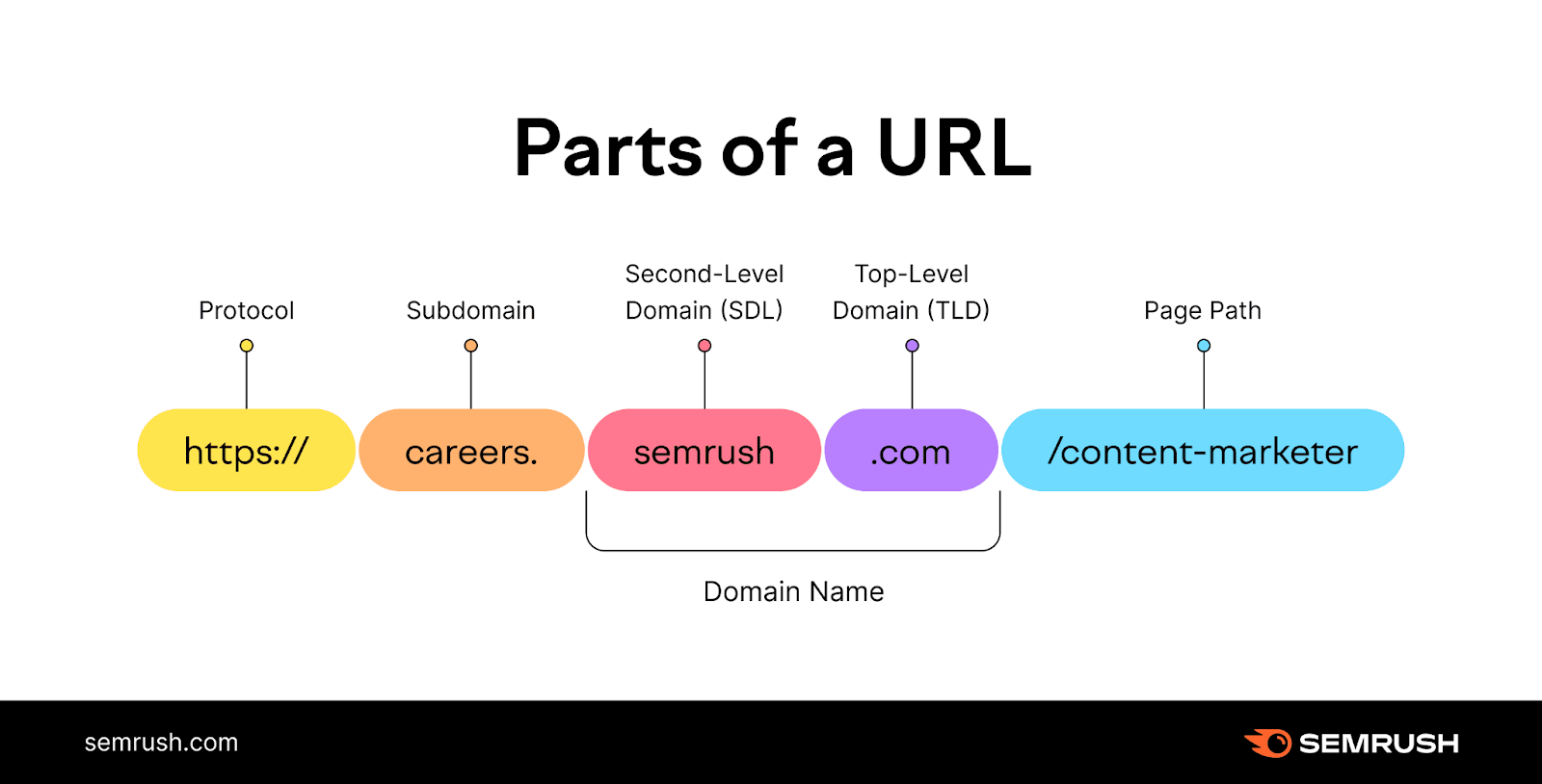
   <figure><img src="/files/WqrvccMImOSDfrcy2MU0" alt=""><figcaption><p><em>It is possible to host multiple websites under the same domain, using</em> <a href="https://static.semrush.com/blog/uploads/media/fa/70/fa70fafcbf91927caa27d6d418d83aa1/original.png"><em>subdomains</em></a> <em>but this guide will not cover that</em></p></figcaption></figure>

<details>

<summary>Domain is not verified message</summary>

1. Click on the "verify domain"
2. Click Continue on the Domain option
3. Click on Start Verification
4. A Cloudflare link will open, click on "Authorize" to add the TXT record
5. Wait a moment for Google to verify ownership of the domain
6. Return to the Google Site

You may need to backspace and retype the domain

</details>

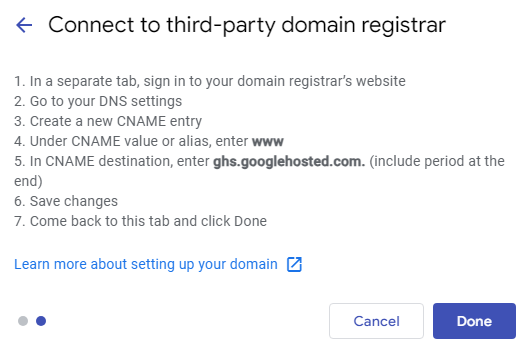
5. Click on Next and you will be provided with the below information<br>

   <figure><img src="/files/BRBvMXXhVB5KVwiEuuKf" alt=""><figcaption></figcaption></figure>

## Configure DNS

Now that the Google Site is set up to accept your domain, we need to configure the forward in Cloudflare

1. Navigate to your [Cloudflare dashboard](https://dash.cloudflare.com/) and select the relevant domain
2. Select DNS
3. Click on "Add Record", input the below and hit save

   <figure><img src="/files/1FyAdIZf7ySgC2hV2N4D" alt=""><figcaption><p>Don't forget to leave a comment down the bottom - this information is helpful when you have a lot of DNS records</p></figcaption></figure>

### Redirect the root to www

I highly recommend following this, as by default going to `mydomain.com` will not work, but `www.mydomain.com` will. In this step, we will redirect `mydomain.com` to `www.mydomain.com`

1. Navigate to your [Cloudflare dashboard](https://dash.cloudflare.com/) and select the relevant domain
2. On the left hand menu, select DNS
3. Click on "Add Record" , input the below and hit Save<br>

   <figure><img src="/files/r1kFxlviVdbMdSpZkE84" alt=""><figcaption><p>The IPv4 address does not matter, as we are proxy-ing this data via Cloudflare. The proxy checkbox enables with redirect rule to work. You could use 1.2.3.4 and it will be fine.</p></figcaption></figure>
4. On the left, click on Rules > Redirect rules
5. Create a new rule and input the below (don't forget to change the domain address for your domain, highlighted in yellow)

   <figure><img src="/files/jUMnfb62Ccahha8CO7HX" alt=""><figcaption></figcaption></figure>

   `concat("https://www.mydomain.com", http.request.uri.path)`
6. Click on Deploy

You will now need to wait some time for the rules to apply, sometimes this is very slow.


---

# Agent Instructions: Querying This Documentation

If you need additional information that is not directly available in this page, you can query the documentation dynamically by asking a question.

Perform an HTTP GET request on the current page URL with the `ask` query parameter:

```
GET https://www.trentbauer.com/guides/other-guides/cloudflare/redirect-domain-to-google-site.md?ask=<question>
```

The question should be specific, self-contained, and written in natural language.
The response will contain a direct answer to the question and relevant excerpts and sources from the documentation.

Use this mechanism when the answer is not explicitly present in the current page, you need clarification or additional context, or you want to retrieve related documentation sections.